Chat Box for HTML: How to Add One to Your Site
Learn how to add a chat box for HTML pages with working code, keyboard-friendly focus, faster loading and fixes for common problems.
Your inbox already has the same three questions sitting in it. Someone wants the allergen list, someone else needs the Saturday order cutoff, and a third person is tired of waiting. A chat box on the page can answer while they are still looking at the menu. A chat box for HTML is not a pretty panel dropped in at the end. The markup, the script that moves focus, and the bytes the widget downloads all ship as one piece. Leave keyboard behaviour or page weight until later and you will publish a box people cannot operate, or a script that delays the hero image. I would lock the approach, the reply path, and the load budget before the first tag.
Choose Your Chat Box Approach Before You Write Code
Say a bakery site hears the same questions every weekday: nuts in the loaf, what time orders close, whether pickup is still open. Staff can keep pasting the same reply into email, or the site can hold a chat box that catches the question on the page.
That box has three layers that have to work together. HTML draws the launcher, the panel, and the form. JavaScript handles the click, the typing, and the request. A backend stores the message and returns an answer. A static page can hold the first two layers on its own. Any real reply needs a server you run, or a hosted service that answers for you. Pick the approach first, because it decides which backend work exists before you write markup.
Chat box build approaches compared
| Approach | Setup effort | Control | Best fit |
|---|---|---|---|
| Custom HTML, CSS and JavaScript | High | Full control of interface and data flow | Developers with their own backend |
| Open-source chat UI library in React or Vue | Medium | High, tied to your build setup | Teams already using a frontend framework |
| Hosted chat widget with embed code | Low | Medium, set through the vendor dashboard | Non-technical teams and fast launches |
| Contact form with email replies | Very low | Low, no live replies | Sites that only collect messages |
Use custom HTML, CSS, and JavaScript when you own the backend and the look has to match the rest of the site exactly. Use a hosted widget when a non-developer has to change answers every week and you want the embed path described in this guide to adding a widget. Use the email form when visitors only need to leave a message and nobody is available to reply live.
Speed is part of that choice, not a later polish pass. In 2025, 66% of U.S. consumers in a HubSpot survey expected a live-chat response within five minutes, according to Convot's report. Decide who answers, and how fast, at the same time you decide the layout.
How to Build a Basic Chat Box in Plain HTML and JavaScript
The smallest useful widget opens, sends one message, and shows one reply. No React, no Vue, no build step. Native elements matter here. A <button>, an <input>, and a <form> already know keyboard behaviour. A clickable <div> does not.
Markup, position, and the open state
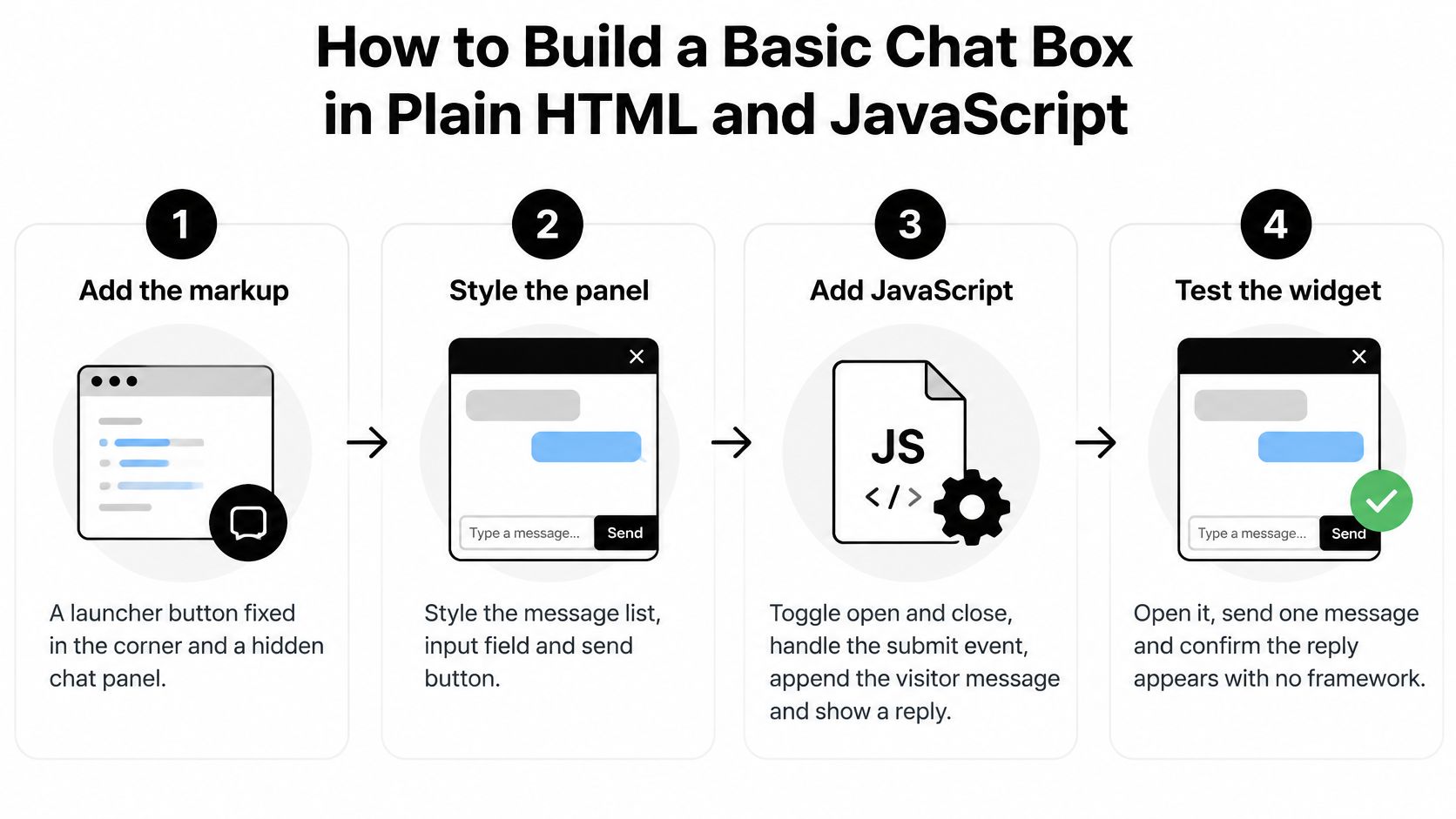
1. Add the markup. Fix a launcher button in the bottom-right corner. Put a hidden panel next to it with a message list and a form that holds a text input and a send button. Native controls are the whole point of this step. Rebuilding them as divs means you will spend the next afternoon restoring Enter and Space.
<button type="button" id="launcher">Chat</button>
<section id="panel" hidden>
  <ol id="log"></ol>
  <form id="composer">
    <label for="msg">Message</label>
    <input id="msg" name="msg" autocomplete="off">
    <button type="submit">Send</button>
  </form>
</section>
2. Position the panel with CSS. Keep it position: fixed, give the log a max-height so a short phone can still scroll, and hide the closed state with a class so you can animate later. A hard pixel height is the slip that fills the whole screen.
#panel { position: fixed; right: 16px; bottom: 72px;
  width: min(360px, 100vw - 24px); max-height: 70vh; }
#panel.is-closed { display: none; }
3. Toggle and move focus. A click on the launcher adds an open class and moves focus into the input. Keyboard and screen-reader users then land on the composer instead of somewhere behind the panel.
launcher.addEventListener("click", () => {
  panel.hidden = false;
  panel.classList.remove("is-closed");
  document.getElementById("msg").focus();
});
Send, render, and recover
4. Post the message with fetch. Call preventDefault() on the form, send JSON to an endpoint you control such as /api/chat, and disable Send while you wait. The common slip is forgetting Content-Type: application/json, so the server reads an empty body and returns nothing useful.
form.addEventListener("submit", async (e) => {
  e.preventDefault();
  sendBtn.disabled = true;
  const res = await fetch("/api/chat", {
    method: "POST",
    headers: { "Content-Type": "application/json" },
    body: JSON.stringify({ text: input.value })
  });
});
Keep the model or helpdesk key on the server. A short Node or Python route reads the JSON body, calls that API, and returns { reply: text }. The browser only renders that one field.
5. Render with textContent, never innerHTML. Create a list item and set textContent to the visitor text and, later, the reply. Typed markup then stays text. innerHTML would run it.
6. Show a typing row while you wait. Append a "Typing…" item when the request starts and remove it when the reply arrives, so the panel does not look frozen.
7. Treat a bad response as a visible retry. If response.ok is false, write a retry line into the log. A silent failure looks like a broken send button.
Finish with one pass on the page: send a message, close the panel, reopen it, and confirm the history is still there and focus returns to the launcher.
Customize the Chat Box Look and Behaviour
Brand matching should be a handful of tokens, not a rewrite. Put colour, type, and corner radius in custom properties on :root, such as --chat-accent and --chat-radius. One edit then updates the launcher, the header, and the visitor bubbles together.
:root { --chat-accent: #1d6b4f; --chat-radius: 12px; }
.chat-launcher { background: var(--chat-accent); border-radius: var(--chat-radius); }
Set position and size in one class. Bottom-right is the default. Move to bottom-left if a cookie banner already sits in the corner. A width of min(360px, 100vw - 24px) keeps the panel on a narrow phone. Write the greeting and the placeholder in the HTML, not in the script, so someone who does not write JavaScript can change the words. Add a header with a clear title and a close button that sends focus back to the launcher, the same rule the open path uses.
Before you ship, check normal text against the accent at 4.5:1. Inline colour overrides are the slip that blocks a later theme and breaks dark mode. For spacing, bubble shape, and header patterns that stay readable, the notes on chat UI design are a useful checklist beside these tokens.
Make the Chat Box Usable With a Keyboard and Screen Reader
Adding ARIA attributes does not make a chat box accessible. The whole flow has to work, and most tutorials stop at a visible input, a message area, and a send button. As Craig Abbott's accessibility notes point out, keyboard operability is WCAG Success Criterion 2.1.1, and a polished widget can still be unusable.
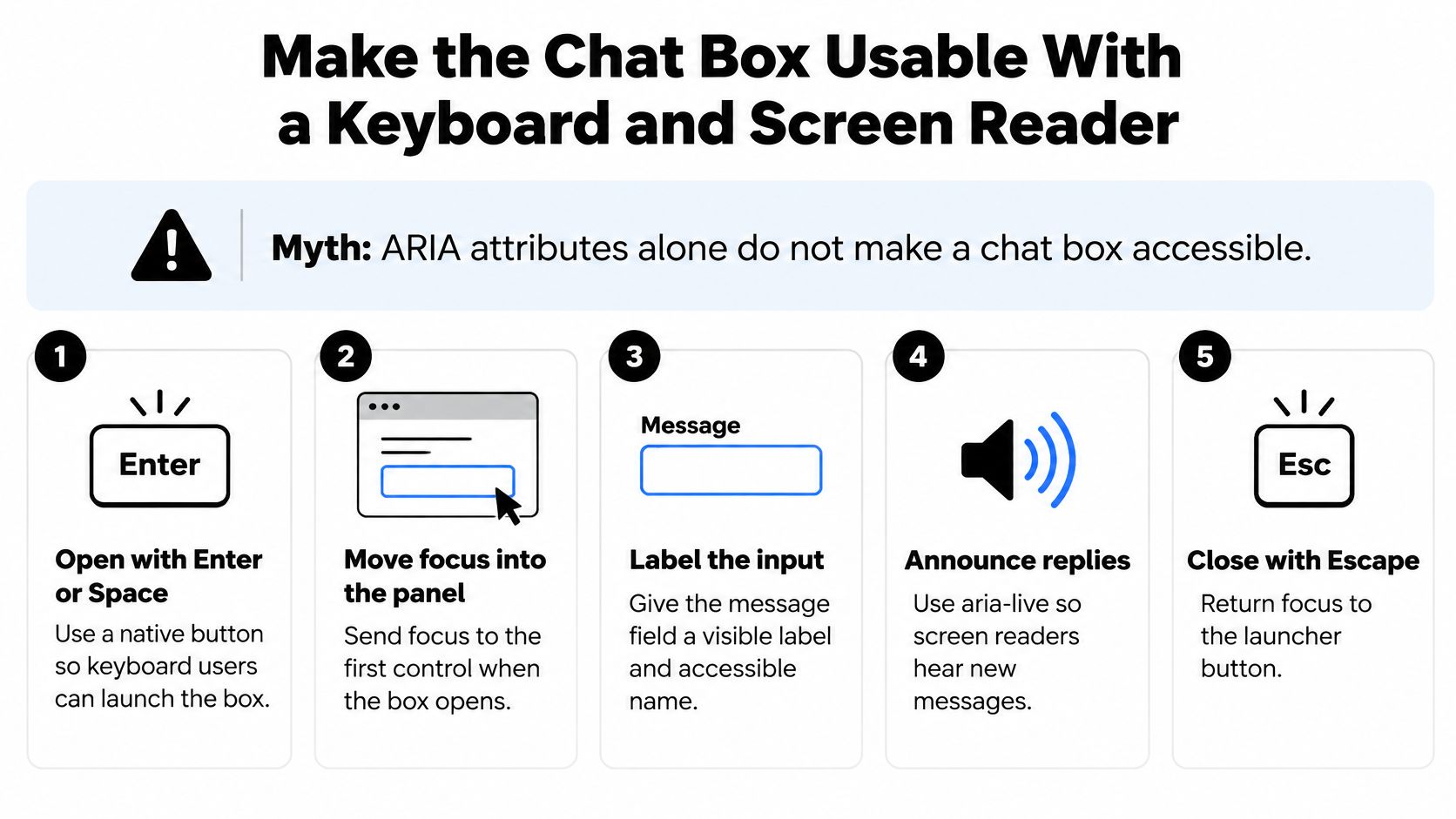
Open with Enter or Space on a native button. Move focus into the composer in tab order. Dismiss with Escape and return focus to the launcher. If focus lands behind the panel, keyboard users are trapped. Put the log in a live region with aria-live="polite", set aria-busy while a reply streams, and announce only the finished message. Give the composer a visible label, and expose errors with role="alert".
Run this before you call it done:
- Keyboard only. From launcher to send to close, with no mouse.
- Screen readers. NVDA on Windows, VoiceOver on macOS or iOS, and Narrator, listening for one announcement per reply.
- Zoom. At 200%, the send button is still visible.
- Reduced motion. The open animation respects the preference.
- Phone. Touch targets survive an orientation change.
Test with a real screen reader. A passing visual check is not the same thing.
Keep the Chat Box From Slowing Your Page
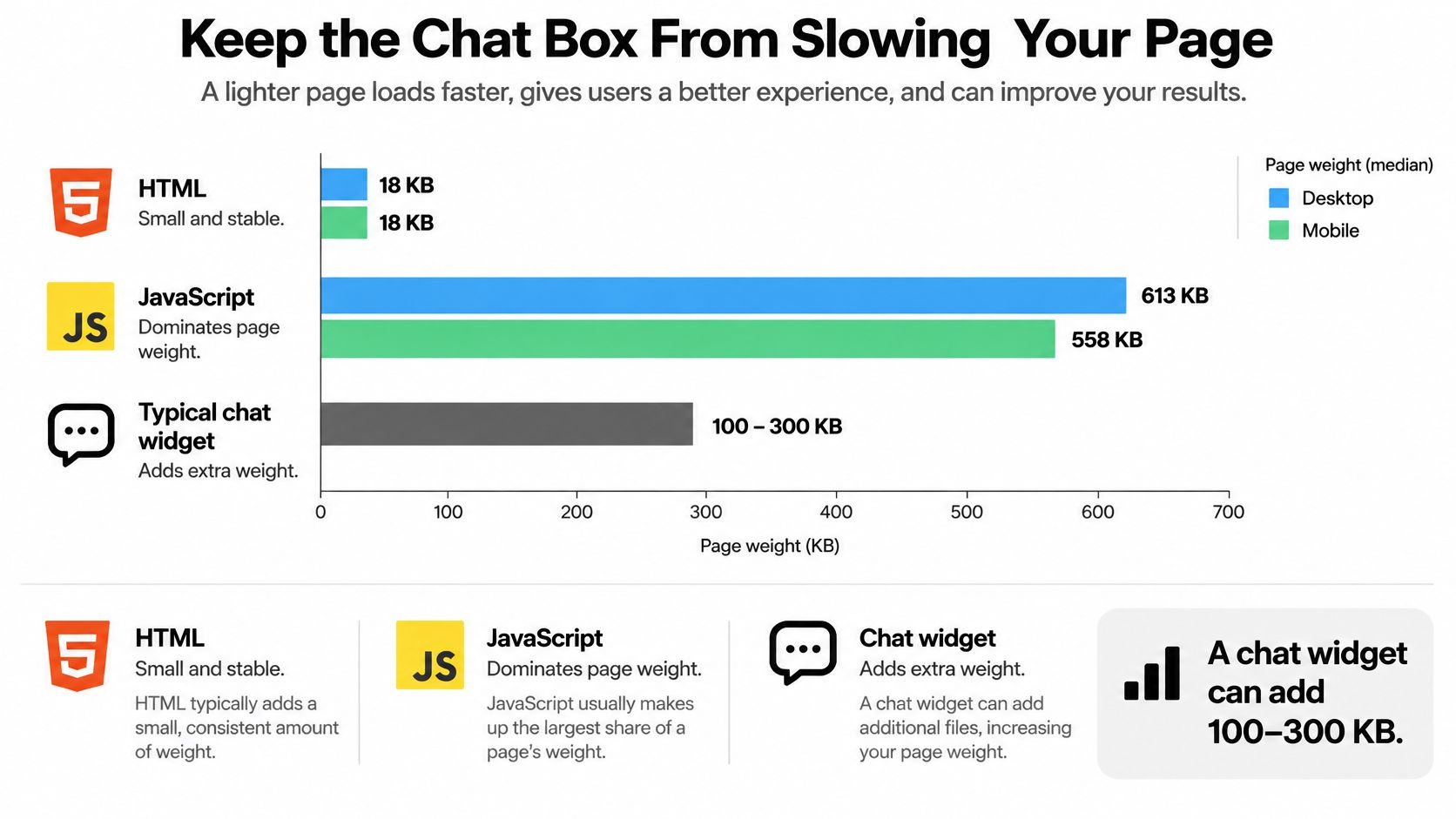
Script weight is the cost, not the HTML for the launcher. A 2025 synthesis of web-performance data reported median page weights of about 18 KB for HTML on both desktop and mobile, against 613 KB of JavaScript on desktop and 558 KB on mobile, and put a typical chat widget at roughly 100–300 KB, in HTTP Archive page-weight reporting. A 100 KB widget is already several times the median HTML document.
A field-data study covering 9.58 million origins reported that sites with live-chat widgets passed Core Web Vitals on 37.6% of mobile origins versus 43.3% without widgets, according to Core Web Vitals research on chat widgets. Treat the widget as non-critical:
- Measure a control page with Lighthouse and real-user Core Web Vitals.
- Ship only the launcher first, with minimal HTML and CSS.
- Defer the full client until the visitor opens the box, or inject it in an idle period with
requestIdleCallback. - Reserve launcher space so the layout does not jump.
Watch these pitfalls:
- Auto-open. The panel downloads before anyone asks for it.
- Early history or model code. That payload competes with the first paint.
- Hero and CSS contention. Widget scripts block the image and the critical stylesheet.
Retest LCP, INP, and CLS on a mid-range phone, cold cache and repeat visit. Caching hides a bad first load. If you later add a persistent socket, keep that client off the first paint the same way, including on a real-time chat application.
Fix the Problems That Break a Chat Box
The failure I see first is a reply full of raw tags or a script snippet. That almost always means the message was inserted with innerHTML, using text from the visitor or from the server. Switch that path to textContent before you chase anything else. The other breaks are usually one wrong assumption each.
Chat box symptoms, causes and fixes
| Symptom | Likely cause | Fix |
|---|---|---|
| Messages show raw HTML tags | Reply inserted with innerHTML | Use textContent and sanitize any rich text you allow |
| Chat stops after the first message | Fetch error not caught | Check response.ok, log the status and show a retry message |
| Panel covers the whole phone screen | Fixed height ignores small viewports | Set max-height in viewport units and pad for safe areas |
| Focus stays on the page behind the panel | No focus move on open or close | Focus the input on open and return focus to the launcher on close |
| Replies appear in the wrong order | Responses lack timestamps or IDs | Sort by server timestamp and keep a message ID on each message |
| History vanishes after reload | Storage cleared or never saved | Save a conversation ID and reload messages from the server |
Minutes versus a backend change
A retry line, a max-height, and a focus move are front-end fixes you can ship the same day. Message IDs, server timestamps, and a stored conversation are backend work. Do not fake order in the browser if two replies can arrive out of sequence.
Keep API keys out of browser JavaScript. Sanitize any rich text you deliberately allow, and add a restrictive Content Security Policy so an injected script still cannot run. If the box goes quiet after one turn, the checks in why a chatbot is not working line up with the status-and-retry row above. Reproduce each bug on a phone and on a desktop, then again after the fix.
Test and Publish Your Chat Box Safely
Publish only after a pass with real questions from your inbox or support log, not lines you invented to make the bot look clever. Read each reply for accuracy and for tone.
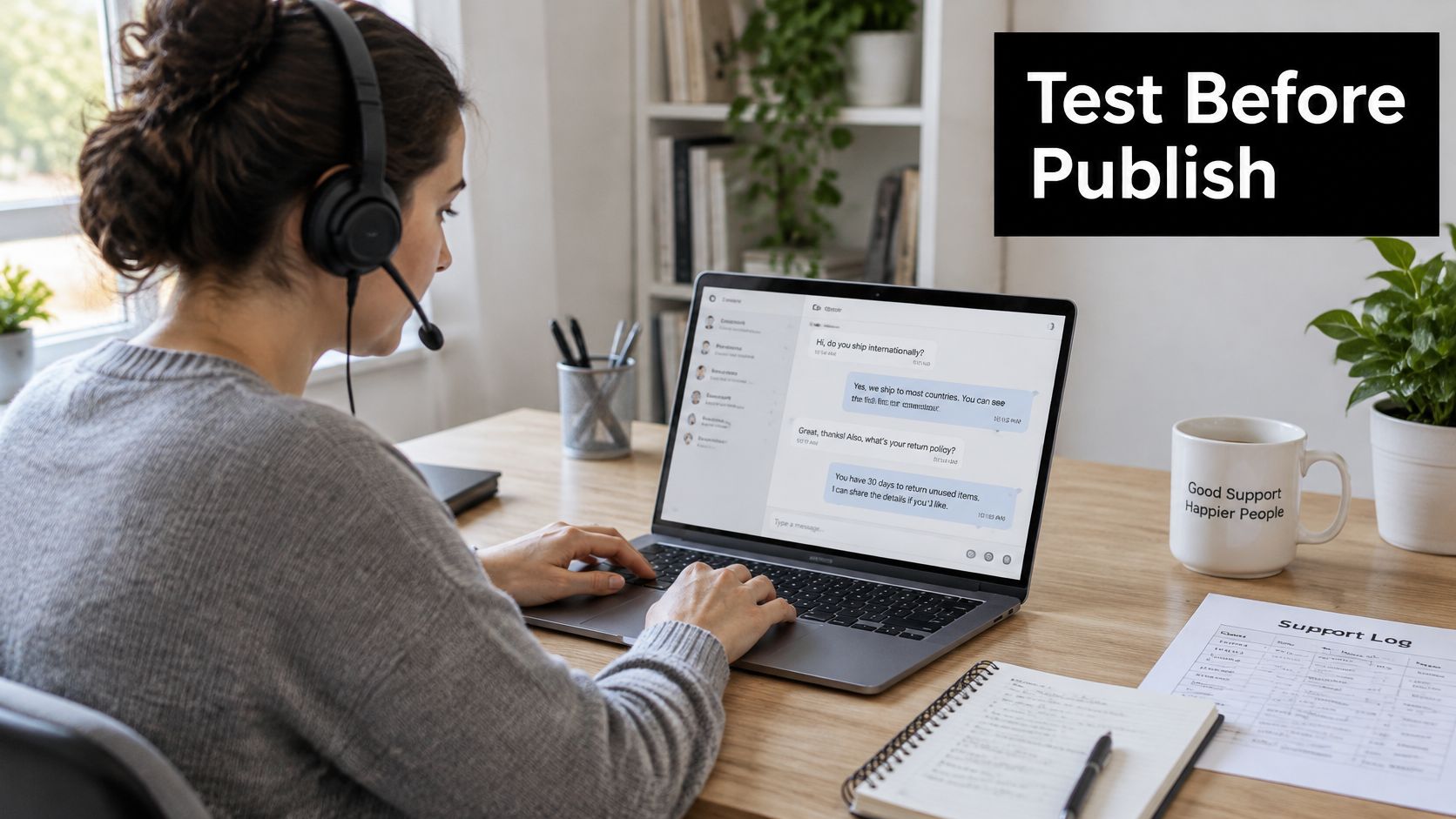
AI-generated responses can be inaccurate or unsuitable, and you are responsible for testing agent behaviour and reviewing anything that touches prices, policies, or safety. The one check that matters most before go-live is a question the bot should refuse or hand off, such as a refund dispute or a medical question.
If you wrote the custom route, put it behind a staging path first, repeat the keyboard and screen-reader pass, and watch page speed for a week. If you would rather not build that backend, you can embed the Ask AI widget in a few minutes by copying the embed code SupportGPT provides and pasting it onto your site. Those embedded chat agents answer visitor questions and can hand a conversation to a person. A similar embed pattern shows up in the Zendesk web widget setup, if that is the helpdesk you already run.
This short walkthrough covers the same open, send, and reply path on a live page.
A chat box is ready when it works with a keyboard, stays fast, and hands off to a person when it should.
SupportGPT gives you embedded chat agents you can place on a plain HTML page, with answers grounded in your own sources and a handoff when a person should take over. That is the practical alternative when a custom chat box for HTML would cost more time than the questions are worth. Try it on your own site at SupportGPT.