Chatbot Not Working: How to Diagnose and Fix It
Chatbot not working? Learn how to tell a broken widget from a bad answer, run checks in order, and fix the cause fast.
It's a Tuesday afternoon and the chat bubble on your pricing page has been spinning for eleven seconds. The visitor gives up, closes the tab, and emails support with four words: your chatbot not working. By the time the ticket reaches someone who can fix it, three theories are already circulating in the thread, and none of them involve the browser console.
That gap between what the visitor saw and what the team assumes is where most of these reports live. Chatbot not working describes an experience, not a diagnosis. It can mean the widget never rendered because a tag manager blocked the script, the model answered fluently from a help article you retired last quarter, or the bot answered correctly and then left the person with no route to a human.
Each of those failures sits on a different layer, and each layer has a cheap first check. Find the layer before you rewrite a prompt, because prompt edits are the most expensive way to discover that a third-party script was blocking the widget all along.
Find Out Whether the Chatbot Is Down or Answering Badly
Start with what the person saw. The symptom narrows the layer faster than any dashboard, and it tells you which tool to open first.
| Symptom | Likely layer | First check |
|---|---|---|
| Widget missing or blank | Embed or page script | Confirm the embed code is on the live page and read the console for script errors |
| Spinner never finishes | Network or timeout | Find the chat request in the network tab and record its status code |
| Replies take 20 seconds or more | Latency under load | Time replies at different hours and compare p50 with p95 |
| Empty or cut off replies | Model or token limit | Check token counts and empty-response logs for that conversation |
| Confident but wrong answer | Retrieval or knowledge source | Check which sources were retrieved for that question |
| No way to reach a human | Escalation rules | Ask for a person in plain words and see whether the handoff fires |
| Works on desktop, fails on phone | Responsive layout or blocked script | Test on the phone with a clean browser and no ad blocker |
A missing widget and a wrong answer are different bugs with different owners. Teams waste days on the first one by treating it as a model problem. If nothing loads, no prompt change will help, and the fix usually belongs to whoever owns the site's script tags.
Answering badly counts as failing too. In a controlled study, chatbots resolved only 34% to 42% of customer requests, against roughly 79% to 87% for live agents, as reported in the customer-service chatbot study in the Journal of Consumer Research. A reply on screen proves the request returned. It doesn't prove the task got done, and visitors judge the bot on the task.
The layer most troubleshooting articles skip is the interface itself. A 2025 evaluation of 106 deployed web chatbots across healthcare, education, and customer-service sites found that more than 80% had at least one critical accessibility issue, and 45% had missing semantic structures or incorrect ARIA roles, according to the ACM study of chatbot accessibility defects. Those defects read as a broken bot to anyone using a keyboard, a screen reader, a small screen, a slow connection, or high-contrast settings. They also slow rendering for everyone else, so the "it's just slow" complaint and the accessibility audit often turn out to be the same ticket.
Cheapest first move: if the bubble never appears, the model is not a suspect. Ten seconds in the console beats an hour in the prompt editor.
So the routing rule is simple. Widget absent or blank means skip the model entirely and go to the page. Widget present and answering wrongly means start with the sources it retrieved for that question, because the answer text is usually a faithful summary of a bad or stale document. The metrics that separate these cases live beyond uptime, and the chatbot performance metrics worth instrumenting are the ones that show resolution by intent rather than availability alone.
Hiring for this skill is its own problem, because triage ability shows up in conversation before it shows up in code. ParakeetAI mock interview practice gives a candidate room to rehearse explaining a debugging sequence out loud, which is exactly what the role demands on a live incident call.
Run the Widget Checks in Order
Work down the page before you work down the model. The short version fits on four cards; the full routine has seven steps, and most "broken" widgets resolve before you reach the fifth.
The checks below run cheapest first, and skipping ahead is how teams end up rebuilding a prompt to fix a blocked script.
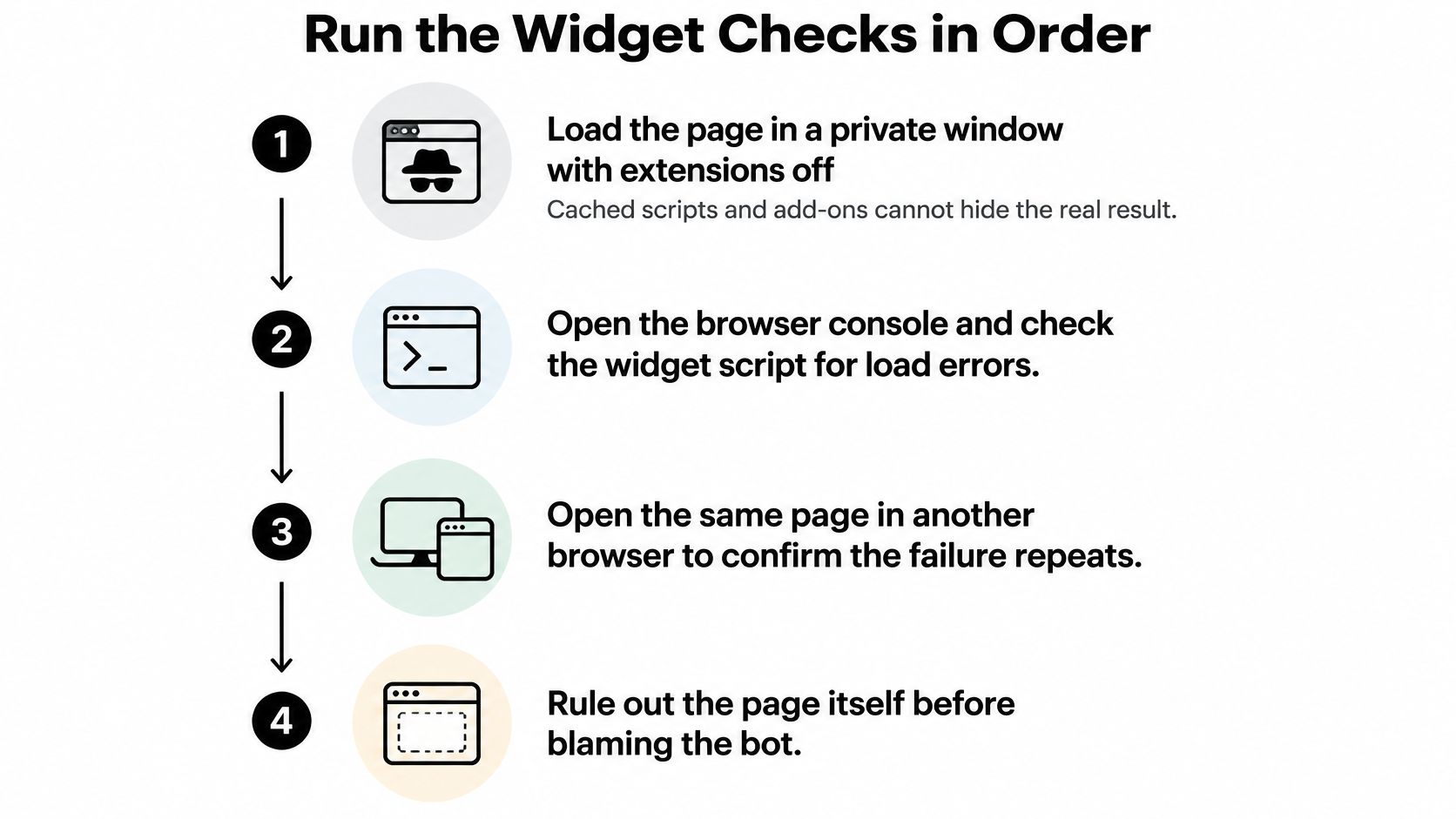
- Load the page in a private window with extensions off. Cached bundles and browser add-ons can serve an old widget script or block the new one, which makes a page you just fixed look broken. A private window gives you a control sample before you change anything.
- Open the console and read the errors. Failed script loads, Content Security Policy violations, and refused iframes all show up here by name. A single blocked third-party tag is enough to stop the widget rendering, and the console tells you which tag.
- Find the chat request in the network tab. Record its HTTP status and how long it stayed pending. A request that never resolves points at a timeout or a proxy, not a language model, and you'll chase the wrong layer for hours if you skip this.
- Repeat on a second browser and on a phone. A widget that loads on desktop and fails on mobile usually has a responsive or viewport problem, or a script that mobile browsers block. One device passing tells you nothing about the other.
- Tab through the page with the keyboard only. The launcher should take focus, the message input should have a visible label, and a screen reader should announce new replies as they arrive. If focus drops to the page body when the panel opens, keyboard users are locked out even though the widget "works".
- Reproduce the visitor's setup with blockers on. Many visitors run an ad or privacy blocker that treats third-party chat embeds as trackers. Load the page with it enabled to see what they saw, then disable it to confirm the block is the cause rather than a coincidence.
- Clear cookies and local storage last. Clearing browser cookies and local storage may reset anonymous chat history or sign-in state, so it destroys the evidence you might still need. Do it only after the earlier steps have ruled out script and network causes.
The most common slip is testing in a browser that still holds the old widget script. You deploy a fix, reload a stale tab, see the same failure, and start debugging a bug you already solved. Always confirm the script version in the network tab matches the build you shipped.
A healthy result looks unremarkable: the widget appears, the chat request returns 200, and the first reply arrives within a few seconds on both a laptop and a phone. If the embed snippet itself is malformed, duplicated, or sitting above the script that defines it, the walkthrough for adding a widget to a live site covers placement and load order.
Log a Failed Conversation Well Enough to Reproduce It
The ticket you're holding is almost certainly unreproducible. It has a screenshot of a bad answer, no conversation ID, no timestamp, and no note of whether the visitor was on the site, in Slack, or messaging from a phone. You can't fix what you can't replay.
Capture the environment before you interpret the answer: timestamp, user locale, channel, browser or app version, conversation ID, model, prompt version, the sources retrieval returned, tool calls made, HTTP status, latency, and token counts. The Berkeley CMR guide to diagnosing chatbot frustration lays out that record set as the minimum for separating infrastructure failure from conversational failure.
Then put the case in one of five buckets, because each has a different owner.
- Unavailable or timing out: the platform, the gateway, or a dependency. Owner is infrastructure.
- Unable to understand intent: ambiguous wording, missing context, or a prompt that answers a neighbouring question. Owner is prompt and conversation design.
- Unable to retrieve grounded information: the document is missing, stale, or chunked badly. Owner is content.
- Unable to complete an external action: expired credentials, a changed API, an unhandled error. Owner is integrations.
- Unable to hand off to a human: rule never fires, or fires and has nowhere to send the thread. Owner is support operations.
The replay is the whole point
Correlate request IDs across the gateway, model, retrieval, and action services, and check the client console for errors that happened before the request left the browser. Then replay the exact input against a known-good model configuration. If the good setup answers correctly, the fault sits in your configuration change rather than the model, and that alone cuts the search area in half.
A 200 is not a pass. A syntactically valid response can still be irrelevant, unsupported, repetitive, or incapable of finishing the request.
This is why aggregate uptime is the wrong headline number. Track p50 and p95 latency, timeout rate, empty-response rate, retrieval hit rate, tool-success rate, fallback rate, and resolution rate by intent. Build a 50 to 100 case regression set from real failures covering high-volume intents, ambiguous wording, multilingual input, long context, prompt injection, unavailable tools, and escalation requests, and gate releases on per-intent thresholds instead of average satisfaction.
If you want a worked example of how this reads in practice, the conversation analysis walkthrough shows the same case annotated end to end. When you finish, open a new conversation, ask the identical question, and compare which sources came back and how the answer changed.
Set Up a Human Handoff Before Users Get Stuck
The failure that costs you the customer isn't the confident wrong answer. It's the same wrong answer delivered three times with no visible way out. Visitors rarely write in to say the bot gave up; they leave, and the ticket that arrives an hour later describes a missing order rather than a missing button.
Recovery design needs an owner, a written rule, and a metric. It is an operational control, not a wording change to the fallback line.

The policy that holds up has three steps. Detect uncertainty using signals you already collect: retrieval scores under your threshold, contradictory sources, missing required fields, a failed tool call, or a model-generated confidence value. Attempt one constrained repair, either a targeted clarifying question or two candidate interpretations the visitor can pick between. Escalate with context: transcript, detected intent, fields already collected, actions attempted, and the reason the bot stopped.
That decision path has experimental backing. Work on repair strategies, reported in the ACM study of chatbot recovery design, found that offering a suggestion about what the user might mean improved perceived accuracy and likability more than asking them to rephrase. The same body of evidence covers deployed bots: 89% of failed customer-service chatbots offered no way to contact a human, while 87% of the ones still operating did.
Escalating without context is just a reset button. The agent on the other end starts from zero, re-asks what the bot already asked, and the customer explains their problem for the third time.
Escalation rule to write down: hand off when the customer mentions a refund dispute, or when they ask for a person twice.
Write rules like that in plain language and base them on query complexity rather than on a single keyword. We build escalation that way, and our embedded chat agents answer visitor questions before passing the thread to a human when the rule trips. If your team hasn't written escalation rules before, the escalation process explained step by step is a reasonable starting template.
Measure escalation coverage and successful handoff rather than minimising handoffs. The numbers worth watching are unresolved-session rate, repeated-question rate, escalation acceptance, time to human pickup, human rework rate, and post-handoff resolution. Set hard limits too: after one failed repair or two low-confidence turns, transfer or offer a verified alternative. Watch what a transfer looks like when the context travels with it:
One caution before you publish results. The cited studies use different samples and designs, so benchmark this policy on your own labelled conversations and report it by intent, language, and channel. The same clarity test applies anywhere chat carries the first reply, including Tarot Chats and its common questions about free readings: can a visitor get a straight answer before the bot has to escalate at all?
Fix the Failure and Retest Before Redeploying
Once the bucket is known, the fix is usually small. The retest is the part teams skip, and it's the part that decides whether the fix holds.
| Failure type | Fix | Verify with |
|---|---|---|
| Wrong or missing answer | Add or correct the source, then re-index the page or file | Ask the five most common questions in the playground |
| Off-topic reply | Write a short scope rule naming what the bot may and may not answer | Test two out-of-scope questions and confirm it declines |
| Repeated identical answer | Add a loop check that changes approach after two identical replies | Replay a three-turn conversation |
| Failed action | Restore integration credentials and add fallback text with another route | Trigger the action with a test record |
| Unsupported claim | Require a cited source or make the bot decline | Ask about a policy that is not in your sources |
Keep the scope rule short. Long rule sets conflict with each other, and the agent resolves the conflict unpredictably, which produces a new failure type in place of the old one.
Some inputs never fit a table. Multilingual messages routinely slip past English-only scope rules, and prompt-injection attempts arrive disguised as ordinary requests. Test both deliberately, and treat any answer that reveals internal instructions as a failure even if the wording is harmless. Workspace customers can supply knowledge sources, files, URLs, integration content, and instructions, so a "missing" answer is usually a source nobody uploaded yet.
The go or no-go retest
Rebuild the regression set from your failure log, keeping the cases that failed, and run the whole set in the Playground rather than in a live session. Judge results per intent: resolution and safe-fallback thresholds matter more than average satisfaction, because an average hides the intent that breaks. Confirm escalation fires for the three handoff cases you care about most, then run the same three until they pass twice in a row.
The edge case testing checklist covers the inputs this table can't hold, including empty messages, mixed-language phrasing, and attempts to override instructions. Your team owns that list. AI-generated responses can be inaccurate or unsuitable, and the customer remains responsible for testing agent behaviour and reviewing important output before anything ships.
Go only when every failing intent passes. Anything still failing is a no-go, even if the average score looks fine. After redeploying, check analytics weekly for the intent that broke: resolved sessions should rise while the same question stops repeating in the transcript.
SupportGPT works on the layers this guide covers: embedded chat agents that answer visitor questions, written escalation rules that pass a conversation to a human when complexity trips them, and a Playground where you can replay failing conversations against your own sources before a customer ever sees the result. That combination is what turns a screenshot of a bad answer into a reproducible case you can fix and verify. Run your own triage on a live page and see how it behaves at SupportGPT.