MP4 to Text Guide: Online, Local, and API Workflows
Convert MP4 to text with online tools, local FFmpeg and Whisper workflows, or transcription APIs. Clean and format transcripts for support and AI systems.
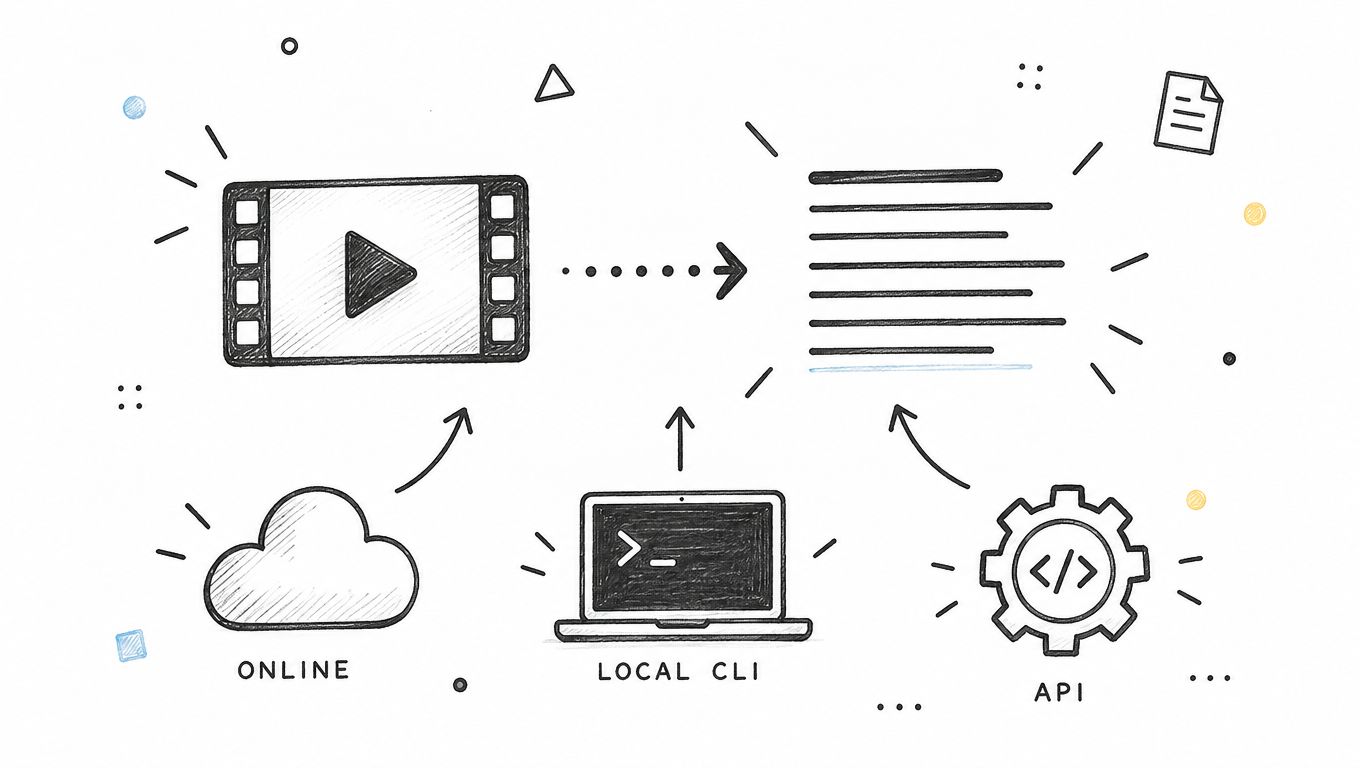
Converting an MP4 to text is useful only if the result survives its next job. A transcript might need to become searchable support documentation, subtitles for a product demo, or structured input for an AI assistant. Each destination needs a slightly different output.
For a single recording, a browser tool is often the quickest starting point. For sensitive recordings, a local transcription pipeline gives you more control over where processing happens. For a steady stream of videos, an API lets you connect transcription to review and publishing. This guide walks through all three approaches, then explains how to turn the output into reliable support knowledge.
Contents
- What MP4 to text conversion actually does
- Choose an online, local, or API workflow
- Convert an MP4 online
- Transcribe locally with FFmpeg and Whisper
- Build an API transcription workflow
- Keep timestamps and speaker labels useful
- Clean transcripts for support and AI systems
- Fix common transcription problems
- Frequently asked questions
What MP4 to text conversion actually does
An MP4 is a media container. It can hold video, audio, and sometimes subtitle tracks. Speech transcription processes the audio and produces written words. It does not automatically capture everything visible on the screen.
That distinction matters for support recordings. A presenter may say “click here” while pointing at a button, or an error message may appear without being read aloud. A speech transcript alone will miss that information. Add a separate screen review or optical character recognition step when the visual content carries instructions.
Decide which deliverable you need before processing the file:
| Deliverable | Useful for | What to check |
|---|---|---|
| Plain text | Reading, searching, and editing | Paragraphs, names, and complete sentences |
| Markdown | Knowledge articles and structured notes | Headings, lists, links, and context |
| SRT or VTT | Captions and playback navigation | Timing, line breaks, and synchronization |
| Structured JSON | Application ingestion and analysis | Segment IDs, timestamps, speakers, and schema |
Keep the original recording available during review. A fluent transcript can still contain an incorrect product name, a missing “not,” or an invented phrase during silence. Readability and accuracy need separate checks.
Choose an online, local, or API workflow
The right method depends on your workload and how you plan to use the result.
| Method | A practical fit | Main trade-off |
|---|---|---|
| Online converter | Occasional recordings and quick exports | Your workflow depends on the service's upload, retention, and export options |
| Local transcription | Files you want to process on your own machine | You maintain the software and provide the computing resources |
| Transcription API | Recurring jobs connected to other systems | You need job tracking, retries, and a review process |
Test with a representative recording before committing to a workflow. Include ordinary speech, specialist terminology, an interruption, and a section with background noise. A clean product announcement is a poor test for messy customer calls.
Measure the time needed to produce an approved transcript, including corrections. A fast first draft that requires extensive repair may be less useful than a slower draft with fewer consequential mistakes.
Convert an MP4 online
For a browser-based starting point, Scribiz offers an mp4 to text workflow. Its site also lists text, Markdown, subtitle, and JSON export options. Check the available settings against the output you need before uploading a customer recording.
Use this sequence with your chosen online converter:
- Check the recording. Play the opening, a middle section, and the end. Confirm that the file contains the conversation you expect and that speech is audible.
- Choose the right processing mode. Request transcription in the spoken language. Choose translation separately if you also need a translated version.
- Upload an authorized copy. Confirm that the service's handling of your recording fits your team's requirements. Remove unrelated private material when practical.
- Review the generated text. Correct names, numbers, product terminology, and any sentence that changes the meaning of an instruction.
- Export the right format. Save text or Markdown for editing, and a timed format when you need captions or playback references.
- Check completeness. Compare the end of the transcript with the end of the spoken recording. A completed upload does not prove that the entire conversation was transcribed.
For a support call, review the resolution especially carefully. “The link expires tomorrow” and “the link expired yesterday” can lead to different troubleshooting steps even though both sentences look plausible.
Keep an untouched copy of the initial transcript alongside the approved version. That makes it easier to review edits or revisit a disputed passage later.
Transcribe locally with FFmpeg and Whisper
A local pipeline separates audio preparation from speech recognition. FFmpeg handles the media conversion; a speech recognition engine produces the text. The commands below use whisper.cpp, a local implementation of Whisper.
Prepare the audio
Install FFmpeg using the instructions appropriate to your operating system. This command selects the first audio stream and produces mono, 16 kHz, 16-bit PCM audio:
ffmpeg -i "support-call.mp4" -map 0:a:0 -vn -ar 16000 -ac 1 -c:a pcm_s16le "support-call.wav"
The stream selection and audio options are documented in the FFmpeg manual. If participants were recorded on separate channels, retain the original multichannel file; mixing to mono removes that separation. The example is intended for ordinary speech transcription, not a channel-based speaker identification workflow.
Listen to the WAV before proceeding. If the wrong language track was selected or the audio is silent, fix that first. Converting the file again will not recover speech that was never recorded.
Build the local transcriber
With Git, CMake, and a C++ build toolchain installed, the whisper.cpp setup guide provides this approach:
git clone https://github.com/ggml-org/whisper.cpp.git
cd whisper.cpp
sh ./models/download-ggml-model.sh base.en
cmake -B build
cmake --build build --config Release
This downloads an English model. Use an appropriate multilingual model for other languages. Initial setup requires downloads; the transcription command then works with the local model and audio files.
Export text and subtitles
From the repository directory, replace the input path with your WAV's actual location:
./build/bin/whisper-cli -m models/ggml-base.en.bin -f "/path/to/support-call.wav" -l en -otxt -osrt -of "/path/to/support-call-transcript"
The output prefix produces .txt and .srt files. The CLI documentation also lists VTT and JSON output options. Run the installed binary with -h to confirm its available flags.
This command does not identify named speakers. Treat speaker diarization as a separate requirement rather than assuming that timestamps provide it.
For repeat work, keep a record of the model, software version, language, and source filename. If a later run produces different wording, those details help you investigate. Start with a short sample before transcribing a long recording so you can catch setup or language errors early.
Build an API transcription workflow
An API is useful when recordings arrive regularly and need to move through the same process. Separate submission from completion: receiving a job ID means that work was accepted, not that usable text is ready.
As one concrete example, the AssemblyAI quickstart documents this sequence:
- Upload a local media file as raw bytes to
POST /v2/uploadand retain its returnedupload_url. - Send
POST /v2/transcriptwith that URL asaudio_url. Request options such as language detection and speaker labels when needed. - Store the returned transcript ID. Poll
GET /v2/transcript/{id}until the job completes or reports an error. - Read the completed transcript and any requested structured output. Handle an error response explicitly.
The service authenticates requests with an API key in the authorization header. Keep that credential in your server environment. Consult the provider's current documentation for supported formats, model options, limits, and costs before implementation.
Make the surrounding job reliable
Keep your own job record with a source ID, provider job ID, processing state, and destination document ID. If a worker restarts, it should resume the existing job rather than submit the same recording again.
Distinguish these outcomes in your application:
- Submission failed: no confirmed provider job exists; inspect the response before retrying.
- Processing continues: the job exists but is not complete; check it later.
- Processing failed: the provider returned a terminal error; store the reason for review.
- Transcript ready: text exists, but editorial checks are still pending.
- Approved and delivered: the reviewed version reached its destination successfully.
Use bounded retries and a deadline. A stuck polling loop should become a visible failed job rather than run indefinitely. If your provider supports completion webhooks, validate incoming events and make their handling idempotent so a repeated notification cannot publish duplicate documents.
Separate transcription success from delivery success. If importing into your knowledge system fails, retry the import using the saved transcript. Re-transcribing adds cost and can introduce different wording without solving the delivery problem.
Keep timestamps and speaker labels useful
Timestamps answer “where was this said?” Speaker labels answer “who said it?” Neither guarantees that the sentence itself is correct.
For captions, check synchronization in the target player. For internal review, timestamps at meaningful turns may be sufficient. For automation, retain segment start and end times in a consistent unit and document whether they refer to the whole recording or an extracted clip.
This is an illustrative internal record, not a particular provider's response schema:
{
  "source_id": "password-reset-training",
  "start_seconds": 42.5,
  "end_seconds": 48.2,
  "speaker": "agent",
  "text": "Please request a new reset link from the sign-in page.",
  "review_status": "approved"
}
Diarization often starts with anonymous labels such as Speaker A and Speaker B. Map those labels to roles only after checking the recording. An incorrect role assignment can make a customer's guess look like an agent's instruction.
If you split a recording, retain the start offset for each clip. Reassemble timestamps against the original timeline and review clip boundaries for missing or duplicated words. Avoid cutting through a sentence when you can choose a natural pause.
Clean transcripts for support and AI systems
A transcript preserves a conversation. A support article should communicate a verified procedure. Treat conversion between them as an editorial step.
Preserve meaning while improving readability
Remove repeated filler and repair punctuation where doing so leaves the meaning intact. Keep negation, conditions, exceptions, and warnings. Do not turn a tentative suggestion into a guaranteed solution.
For example, “If your organization allows email resets, try requesting another link” must not become “Request another link.” The condition may explain why the procedure works for one customer and fails for another.
Flag inaudible passages instead of completing them from context. An invented account setting is harder to detect once it is written as a confident instruction.
Add the visual context
Compare the recording with the text when an instruction refers to a button, error message, or screen position. Replace “select that option” with the verified label and location. Record the product version when the interface is likely to change.
Keep spoken content distinct from an editor's additions. A short note identifying an on-screen message is useful; silently inserting a new troubleshooting step makes the transcript an unreliable record.
Prepare a knowledge article
Group reviewed material around the user's task. A useful support document usually contains the problem, prerequisites, steps, expected result, and escalation conditions. Remove customer-specific identifiers from reusable guidance and apply the destination's access rules.
For example, a password reset article might include:
- The symptom: the customer cannot use the reset link.
- The condition: the procedure applies to accounts using email authentication.
- The verified steps: request a replacement link and follow the current instructions.
- The escalation point: the replacement does not arrive or the account uses a different sign-in method.
- The source: the reviewed recording and relevant timestamps.
When adding that material to SupportGPT, use the source format and ingestion options available in your workspace. SupportGPT describes source-grounded agents and a playground for testing responses; use those to check how the approved guidance is retrieved. Transcription remains a separate preparation step.
Test with questions the document should answer and questions it should not. “How do I request another reset link?” should retrieve the approved process. A question about bypassing account verification should not gain an answer simply because a caller speculated about it in the recording.
Fix common transcription problems
| Problem | What to inspect | Practical response |
|---|---|---|
| Empty or nearly empty transcript | Selected audio track and audible speech | Play the extracted audio and select the correct stream |
| Wrong language | Model choice and language settings | Match settings to the actual spoken language |
| Product names are wrong | Specialized vocabulary | Correct against an approved glossary and use supported vocabulary hints |
| Speakers are mixed together | Overlap and recording channels | Review turns manually and preserve channel separation where available |
| Text appears during silence | Quiet regions and model output | Compare with the audio and remove unsupported text |
| Transcript ends early | Source duration, job status, and last spoken segment | Check limits and failures, then process the missing section |
| Captions drift | Clip offsets and export timing | Align against the original video timeline |
| AI assistant gives outdated steps | Source version and review date | Update the approved document and confirm ingestion completed |
Avoid repeatedly compressing the audio while troubleshooting. Work from the best available source and change one processing choice at a time. Otherwise, it becomes difficult to tell whether the model, the audio, or your cleanup caused the difference.
Frequently asked questions
Can I convert an MP4 to text without uploading it?
Yes. A local speech recognition setup can process your recording on your machine after you install the software and download its model. Check any surrounding tools separately; a desktop interface does not automatically mean that processing stays local.
Will transcription capture text displayed on screen?
Speech transcription captures spoken audio. For silent captions, interface labels, or slides, use screen review or a tool that explicitly supports visual text extraction. Combine the results carefully so readers can distinguish spoken words from visual information.
Which export should I choose?
Choose plain text for simple editing, Markdown for structured documentation, SRT or VTT for captions, and structured JSON for application workflows. Keep timestamps in an additional export if the main document removes them.
Can a transcript identify every speaker correctly?
Do not assume it can. Speaker labels need review, particularly when people interrupt each other, share a microphone, or sound similar. Confirm both the boundaries and the role assigned to each label.
How do I know the conversion is complete?
Check that processing finished successfully, the transcript covers the final spoken passage, and no section is missing at clip boundaries. Then verify the exported file or destination document, not just the preview in the transcription tool.
What should I do first?
Pick one representative MP4 and define its destination. Produce the transcript, check it against the recording, and turn the reviewed result into the format your team actually uses. Once that full path works, automate the repetitive steps while retaining review for uncertain or consequential passages.